Add a thumbnail to your videos
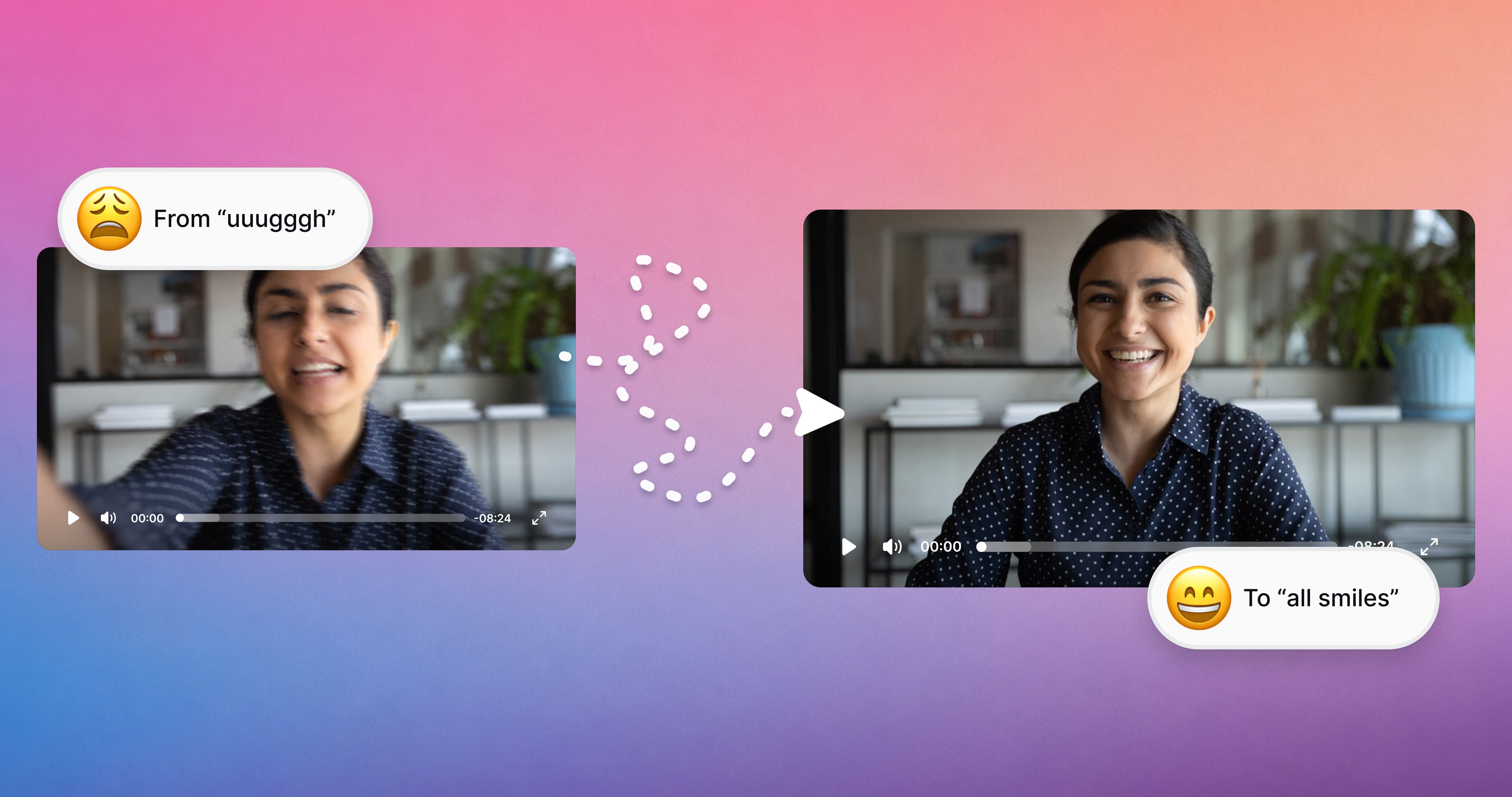
Your videos no longer have to open on whatever frame Heartbeat happened to grab. You choose the thumbnail now.
Pick a moment from the video itself and it plays as a 5-second animated preview starting from that frame. Or upload your own image if you already have a branded cover ready to go.
The thumbnail follows the video into courses, docs, pages, and anywhere else you've added it.
How it works
Open the video in Settings → Videos and click Edit thumbnail. You get two options:
Video frame. Scrub the player to the moment you want, or type an exact time in seconds. The thumbnail becomes a 5-second animated preview starting there.
Upload. Drop in a JPG or PNG. It shows in place of the video preview.
Hit Save thumbnail and it updates wherever that video lives. Change your mind later and the new pick replaces the old one everywhere. Learn more here.
First impressions start before anyone hits play. Now you decide what that looks like.
Heads up: Thumbnails apply to videos uploaded to Heartbeat. Videos embedded from YouTube, Vimeo, or Loom keep the thumbnail from their original platform.